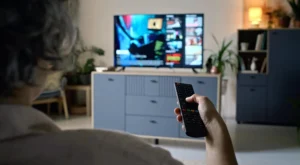
How to Connect iPhone to Samsung TV [Guide] 🚀
Want to watch your favorite shows from your iPhone on the big screen? 🍿 You’re in the right place! Connecting your iPhone to a Samsung TV is easier than you think. This guide will show you the best ways to do it, step-by-step. Let’s get started!
The Battle of Top Players: Fast-Track Overview ⚔️
You have a few great options to connect your iPhone to your Samsung TV. Think of it like choosing a travel route. You can take the wireless highway (AirPlay) or use a physical cable (HDMI). Each method has its own perks. We’ll quickly compare them so you can pick the best one for you.
- AirPlay 2 (Wireless): The easiest way if your TV supports it. Just tap and go! ✅
- HDMI Adapter (Wired): The most reliable connection. No internet needed. 🔌
- Screen Mirroring Apps: A good backup plan if the other methods don’t work. 📱
Interface & Usability Comparison: Which is Smoother? ✨
Let’s see how easy each method is to use every day.
AirPlay 2: The King of Convenience
Using AirPlay feels like magic. Open a video on your iPhone, tap the AirPlay icon, and select your Samsung TV. Your video appears on the big screen instantly! You can even use your iPhone as a remote to control playback. It’s super simple.
HDMI: The Simple Plug-and-Play
With an HDMI cable and a Lightning-to-HDMI adapter, you just plug everything in. Your iPhone screen mirrors directly to the TV. It’s a very straightforward, no-fuss connection.
Feature Set Breakdown: What Can You Actually Do? 🛠️
Connecting isn’t just about mirroring. Here’s what each method lets you do:
- AirPlay 2: Stream videos, music, and photos. Some apps let you send just the video to the TV while keeping controls on your phone. Perfect for watching Movies and Series!
- HDMI Connection: Mirror your entire screen. Everything on your iPhone shows on the TV. Great for presentations, gaming, or using any app, including your IPTV service app.
- Third-Party Apps: Usually just offer basic screen mirroring. Features can be limited.
Stability Under Load: No Buffering, Please! 🏋️
Nobody likes a video that keeps stopping. Here’s how stable each connection is:
- HDMI (Wired): Wins for stability. Since it’s a direct cable, there’s almost zero lag or quality loss. Perfect for fast-paced Sports.
- AirPlay 2 (Wireless): Very good, but depends on your Wi-Fi network. If your Wi-Fi is strong, streaming high-quality video is smooth.
- Screen Mirroring Apps: Can be less stable. They might lag or reduce video quality if your network is busy.
Device Compatibility Matrix: Will It Work For You? 📱➡️📺
Not all iPhones and Samsung TVs work the same. Check this simple guide:
| Method | iPhone Needs | Samsung TV Needs |
|---|---|---|
| AirPlay 2 | iOS 12.3 or later | 2019 model or newer (with AirPlay 2 support) |
| HDMI Cable | Lightning port & adapter | Any TV with an HDMI port |
Customer Feedback Analysis: What Are People Saying? 🗣️
Most users love AirPlay 2 for its simplicity. They say it “just works.” People using the HDMI method praise its perfect picture quality. The main complaint for wireless methods is sometimes the connection drops if the Wi-Fi is weak. Overall, both top methods get a thumbs up! 👍
Price-to-Performance Ratio: Getting the Best Bang for Your Buck 💰
Let’s talk value:
- AirPlay 2: FREE! If you have a compatible TV, it costs you nothing extra. Best value.
- HDMI: You need to buy a Lightning to HDMI adapter (an official one works best). It’s a one-time cost for a super reliable connection.
- Third-Party Apps: Some are free with ads, some cost money. Performance can be hit or miss.
Our Top Recommendation: The Winner is… 🏆
For most people, AirPlay 2 is the best way to connect your iPhone to a Samsung TV. It’s wireless, easy, and free. If your Samsung TV is from 2019 or later, use this method first!
How to use AirPlay 2:
- Make sure your iPhone and Samsung TV are on the same Wi-Fi network.
- On your iPhone, open a video in an app like YouTube or your IPTV player.
- Tap the AirPlay icon (looks like a rectangle with a triangle at the bottom).
- Select your Samsung TV from the list.
- Enjoy your video on the big screen! 🎉
Troubleshooting Common Issues 🛠️
Having problems? Try these fixes:
- AirPlay not showing my TV? Restart your iPhone and TV. Check your Wi-Fi connection.
- Video is lagging? Move closer to your Wi-Fi router or reduce other internet use.
- HDMI adapter not working? Try unplugging and re-plugging the cables. Make sure your TV is on the correct HDMI input.
💡 Pro Tip: For the best streaming experience, especially with live Sports or high-quality Movies, a strong Wi-Fi signal or a wired HDMI connection is key.
Ready for the Ultimate Viewing Experience? 🍿
Now you can easily watch anything from your iPhone on your Samsung TV! Whether you’re streaming the latest Series or catching a big game, a bigger screen makes it better. If you’re looking for a great way to access all your favorite content in one place, check out a premium service.